

Choose what to receive
You can use lifecycle and activity events together. Lifecycle events report changes to account access. OFAuth sends them only through webhooks.
Before you start
Create your integration and choose the environment to test. Your receiver must check each request’s signature using Standard Webhooks. Use the original request body for this check. During setup, the receiver must also return the signed challenge text sent by OFAuth. Use the receiver implementation if you need that code.Add a destination
- Open your External Integration in the OFAuth dashboard.
- Choose Sandbox, Test, or Live.
- Open Webhooks.
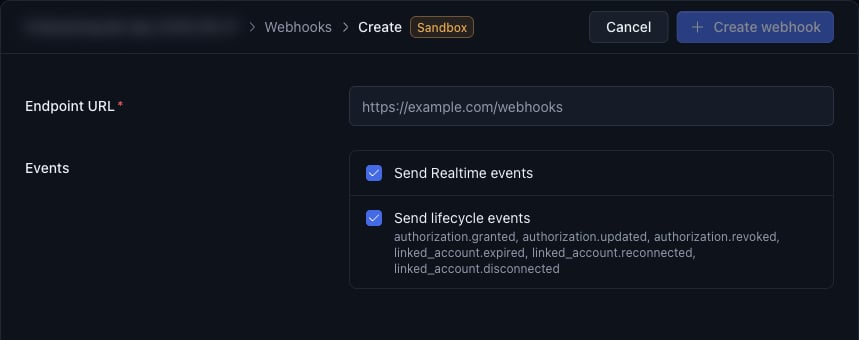
- Select Create webhook.
- Enter the receiver’s HTTPS URL under Endpoint URL.
- Select Send Realtime events, Send lifecycle events, or both.
- Save the destination’s signing secret in your backend’s secret storage. OFAuth shows it only once.
- Configure the receiver with this secret.
- Select Verify for the pending destination. OFAuth sends a signed challenge. After checking the signature, your receiver returns the exact challenge text. See the receiver example.
- Confirm that the destination is Verified and Active. If it is disabled, select Enable.
eventId and type. The challenge has no eventId.